

Registration Setup
Follow these steps to configure registration for the tournament in KumiteTechnology.
1. Go to Registration Setup
Open your tournament settings dashboard and select Registration Setup from the navigation menu.
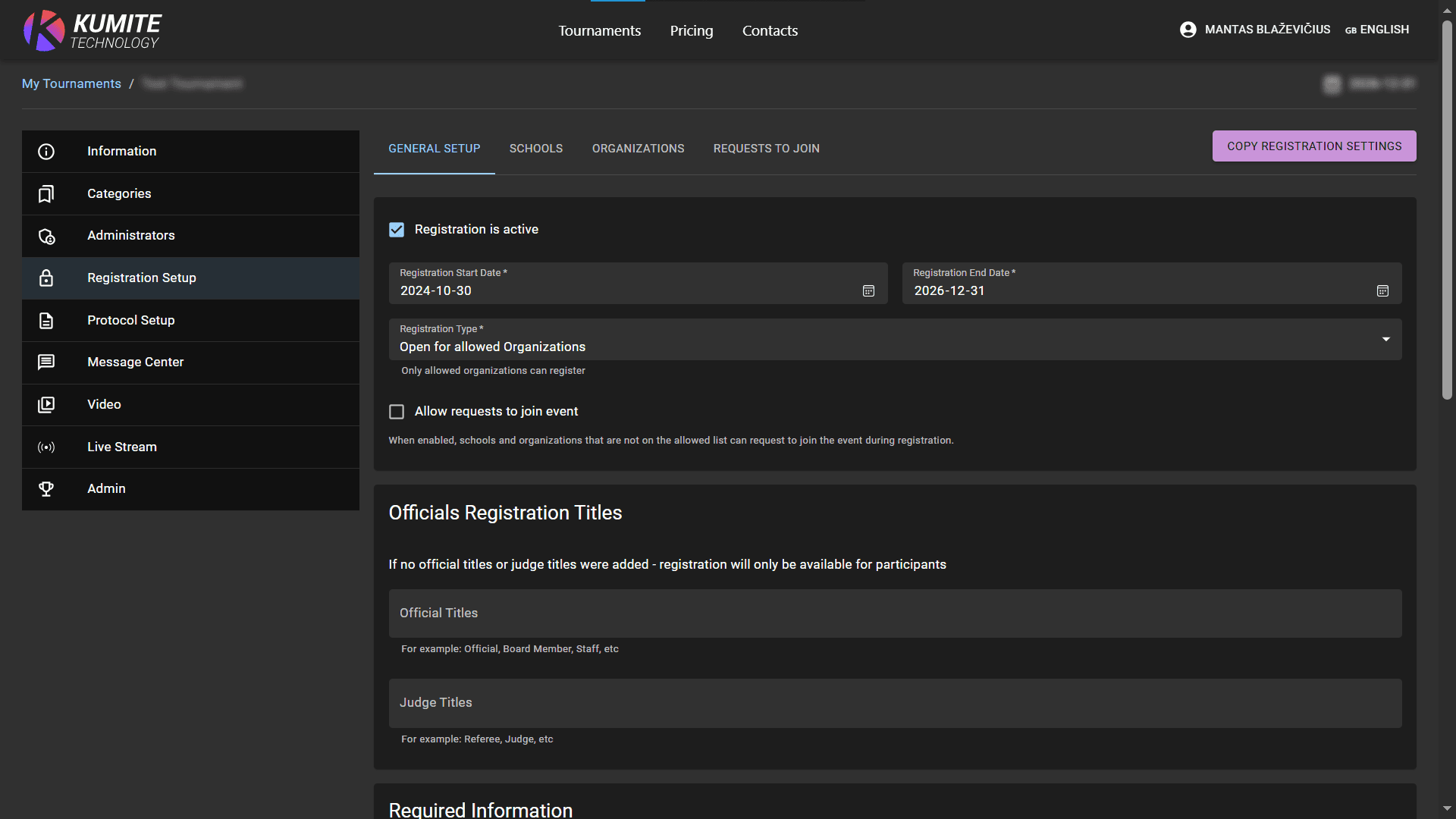
2. Configure Registration Timeline
Activate registration. Set the timeframe when registrations are accepted. Choose between Open Registration, Open for allowed Schools or Open for allowed Organizations. Set up requests to join the event. If enabled, schools/organizations not on your allowed list can request permission to participate. Click Save.
3. Set Officials Registration Titles
If you need to register staff, enter the allowed titles and click Save.
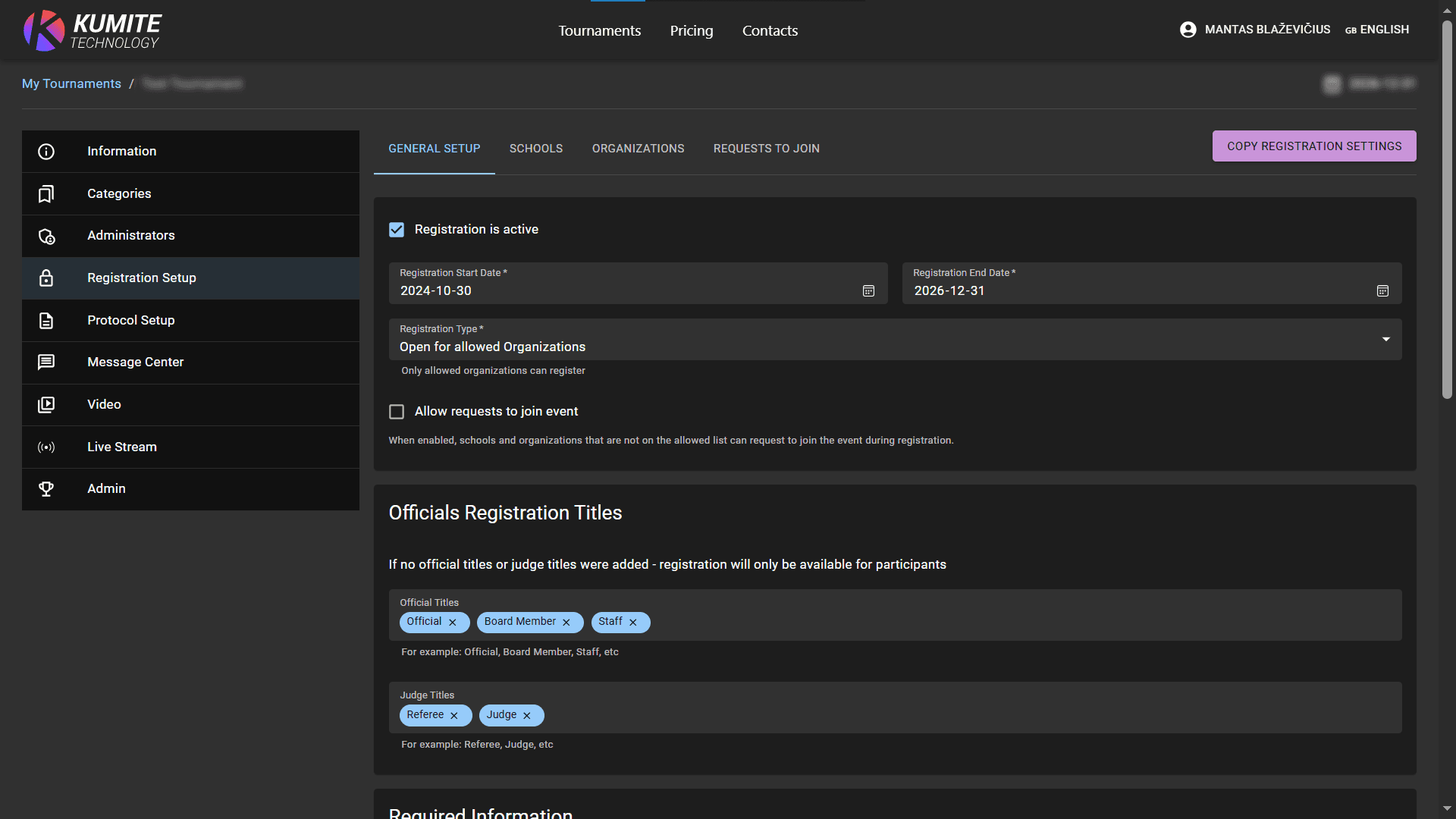
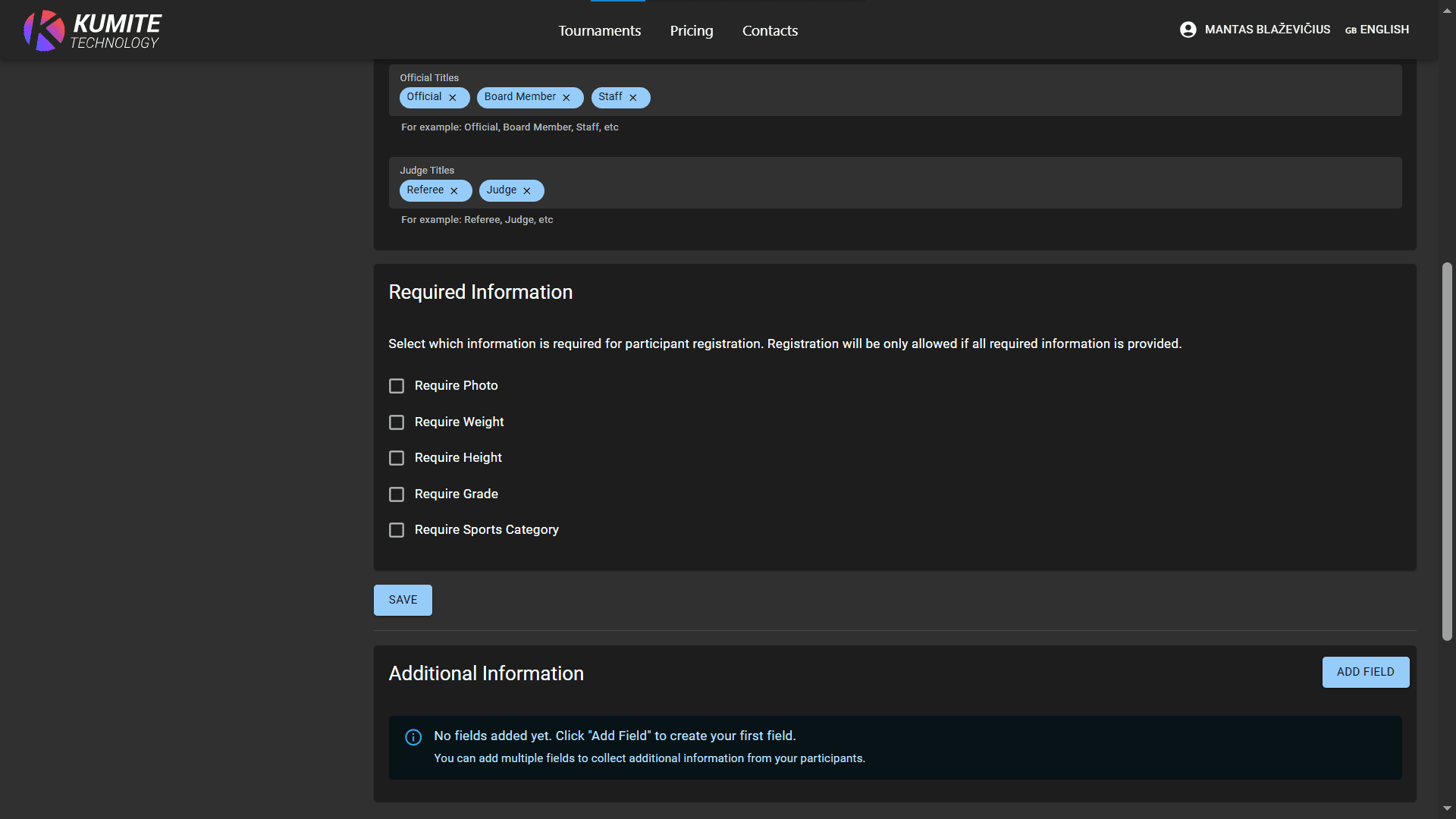
4. Set up Required Information
Select which mandatory data participants must provide and click Save.
5. Add Additional Information
If you need custom data (e.g., T-shirt size), click Add field, define label, type, then click Save.
6. Add Schools or Organizations to Allowance List
-
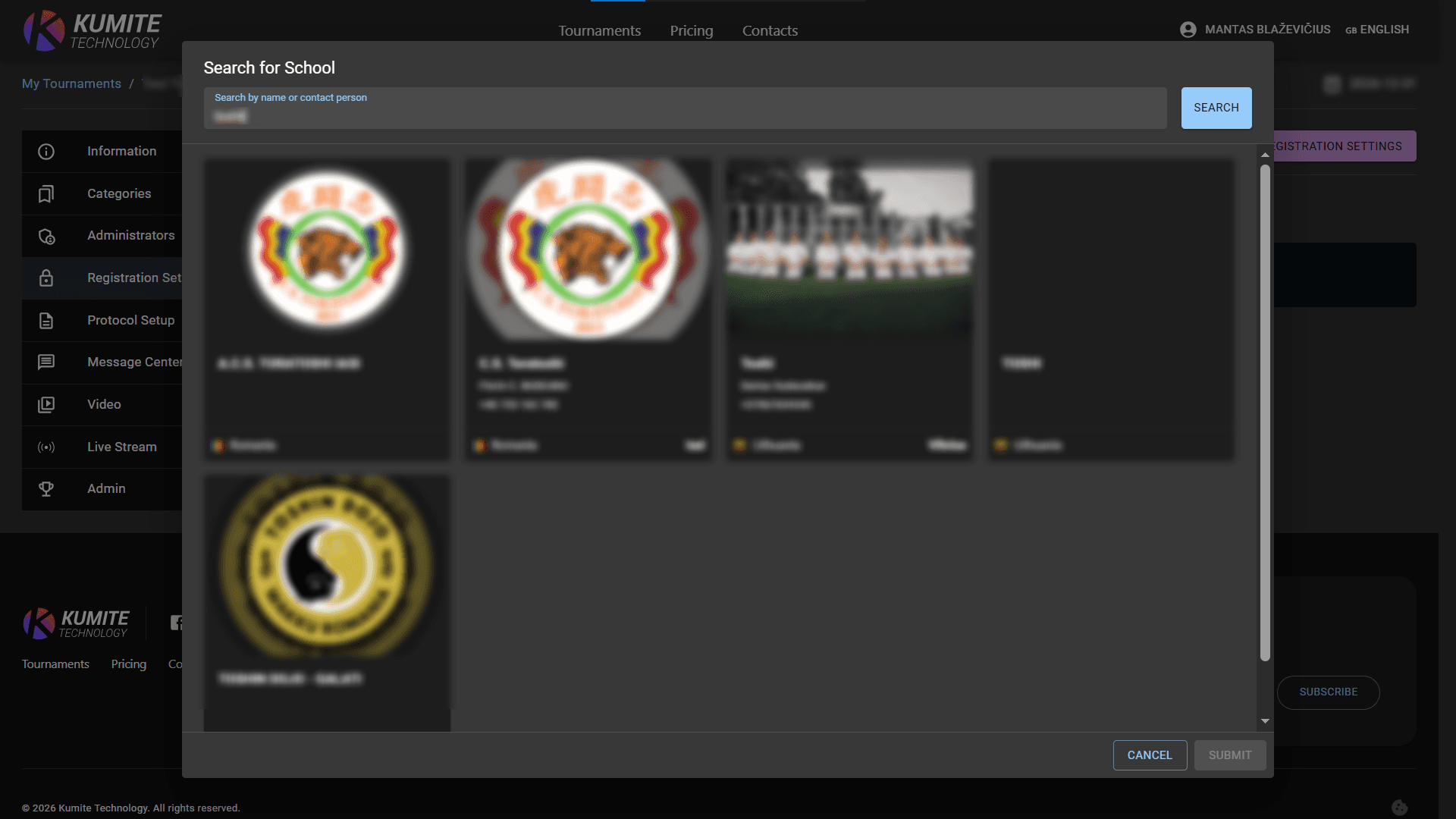
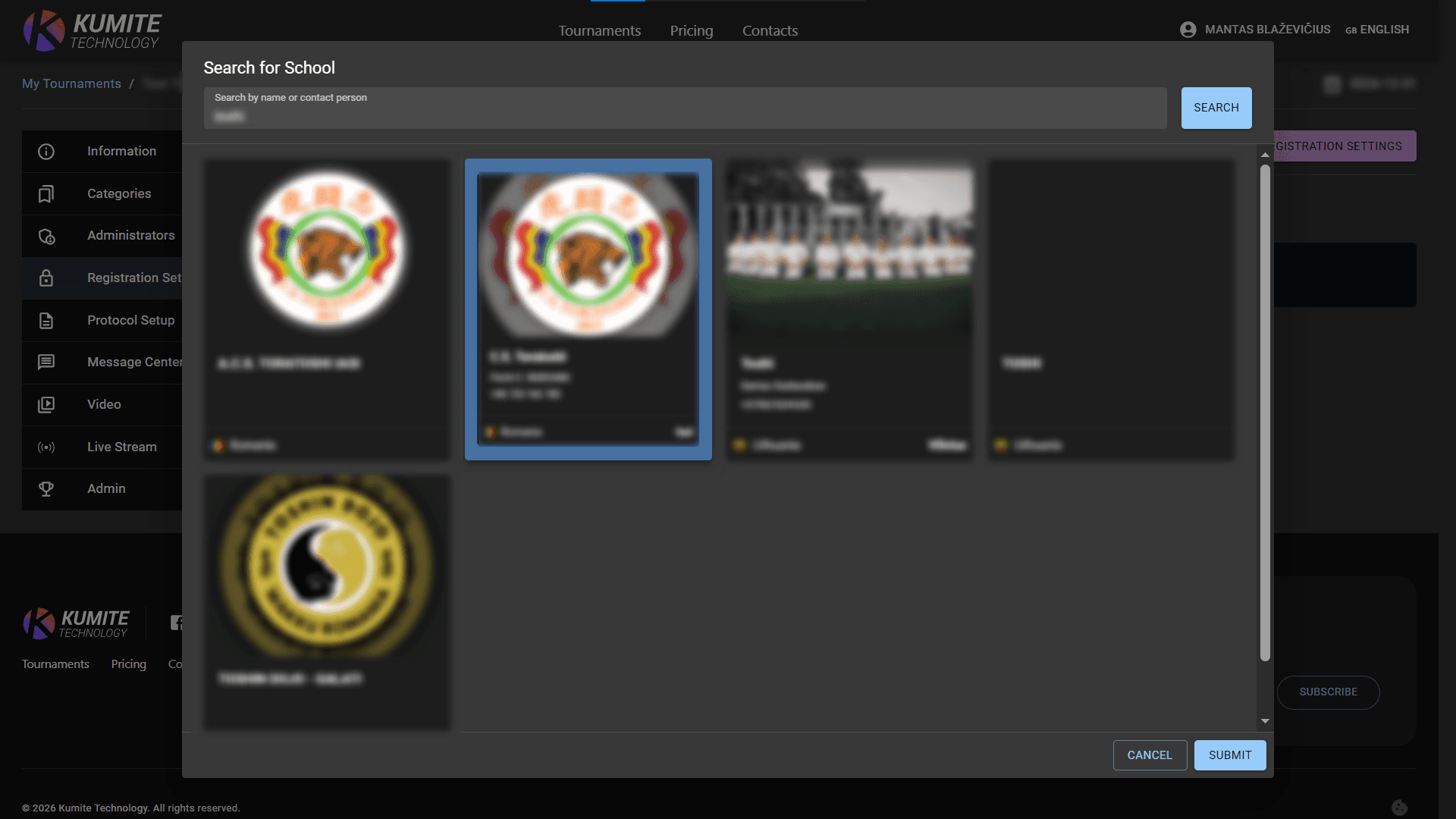
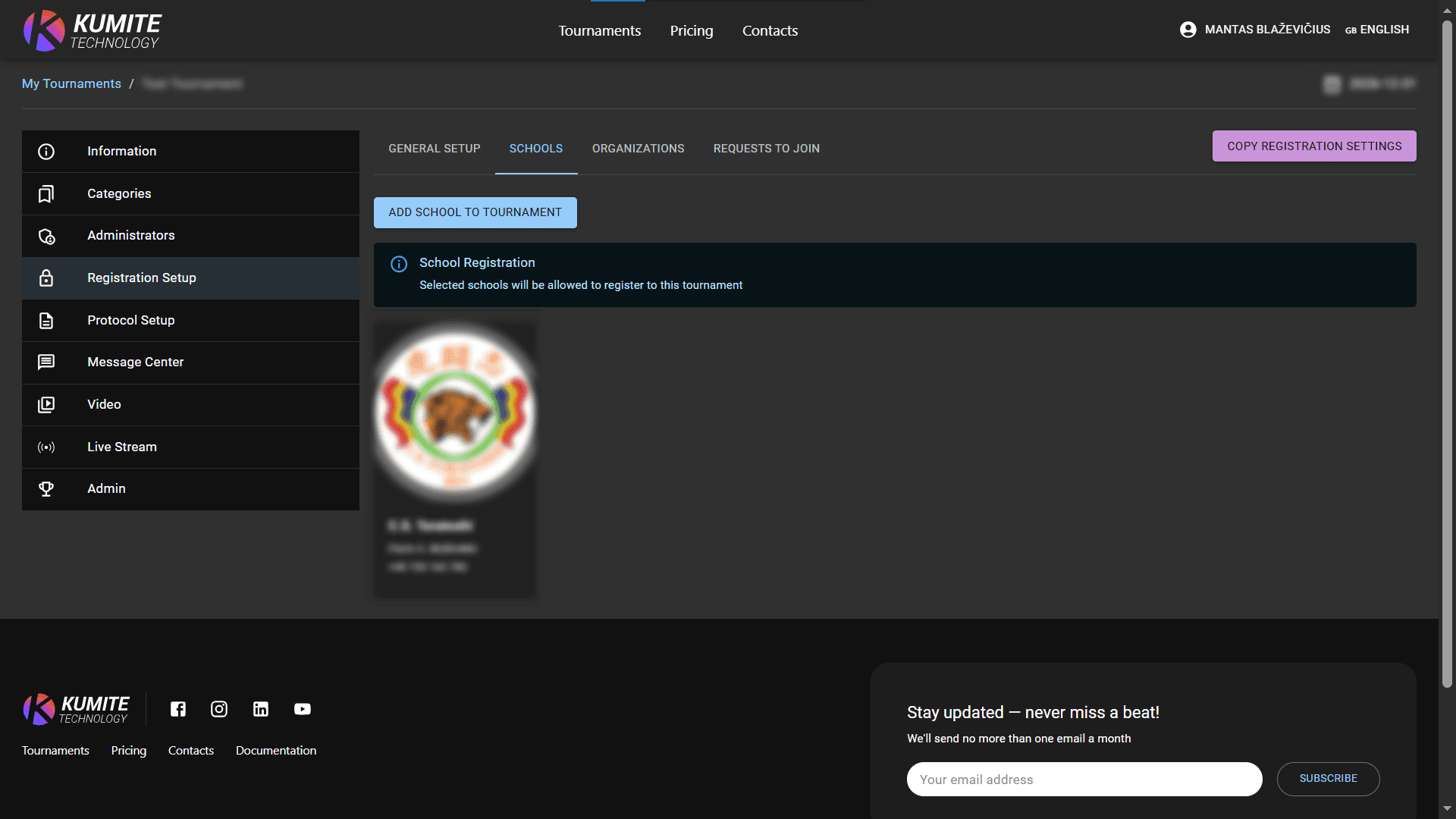
Schools: Click
Schools,Add school to tournament, search, select, and clickSubmit.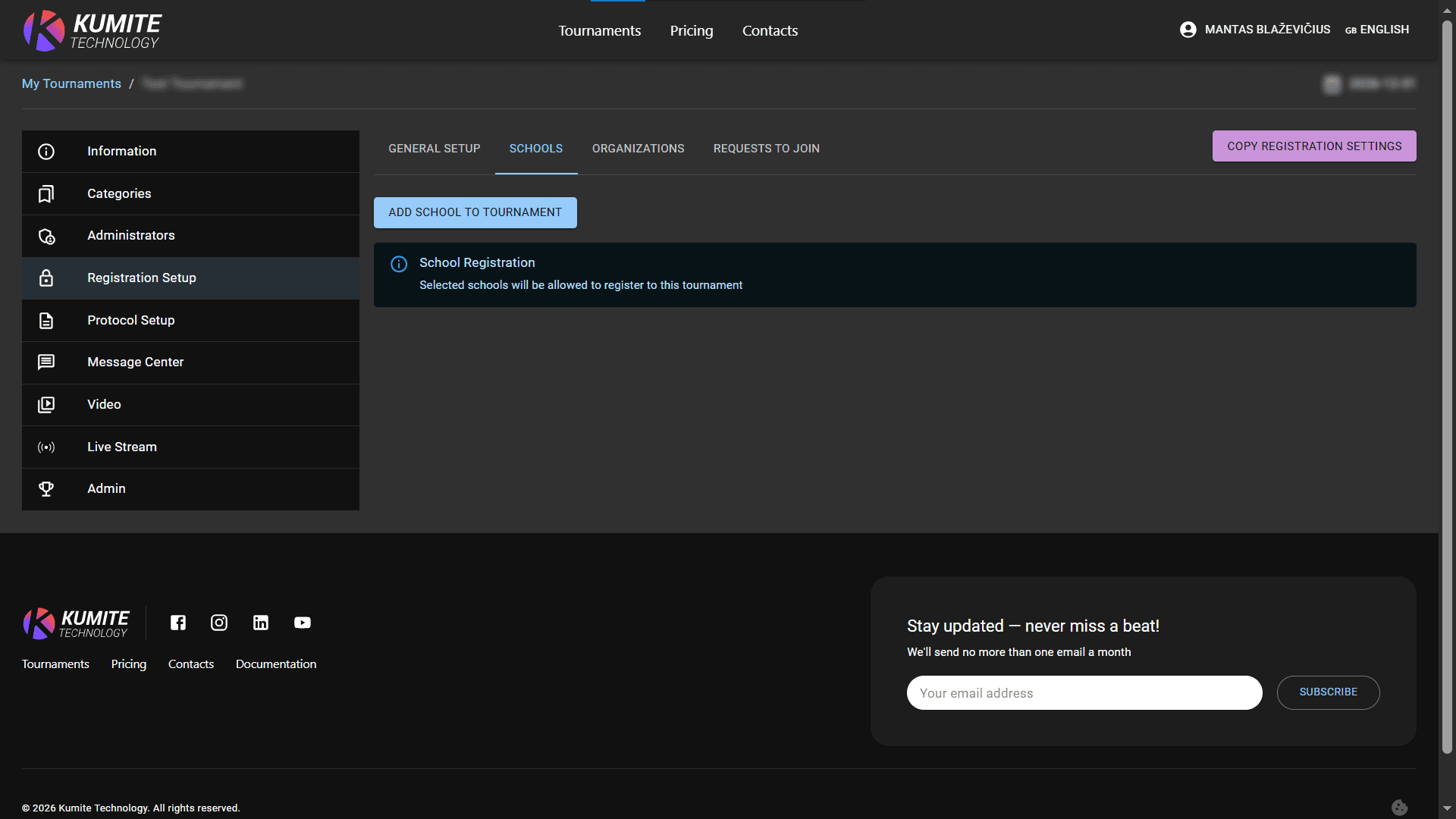
-
Organizations: Click
Organizations,Add organization to tournament, search, select, and clickSubmit.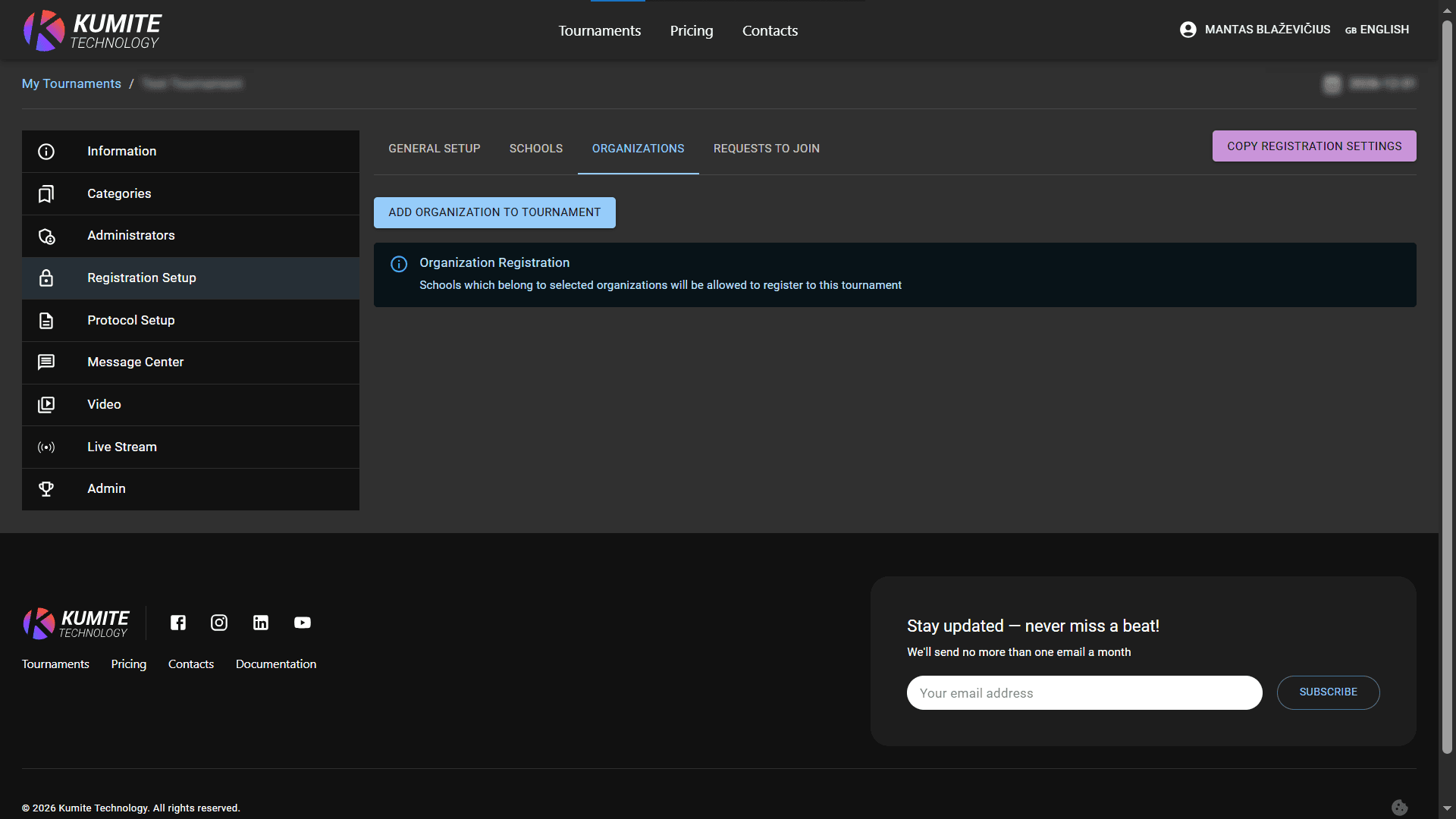
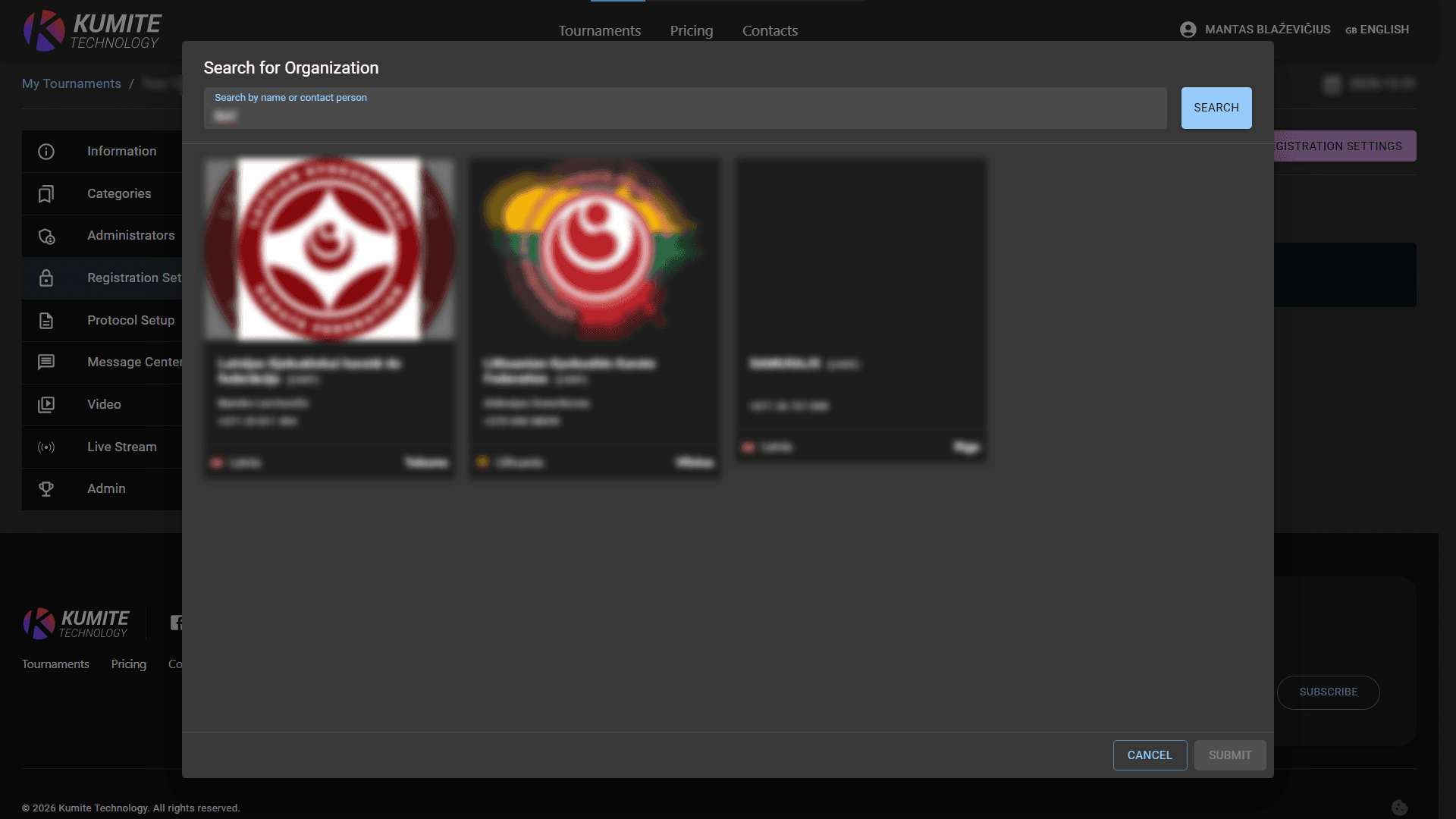
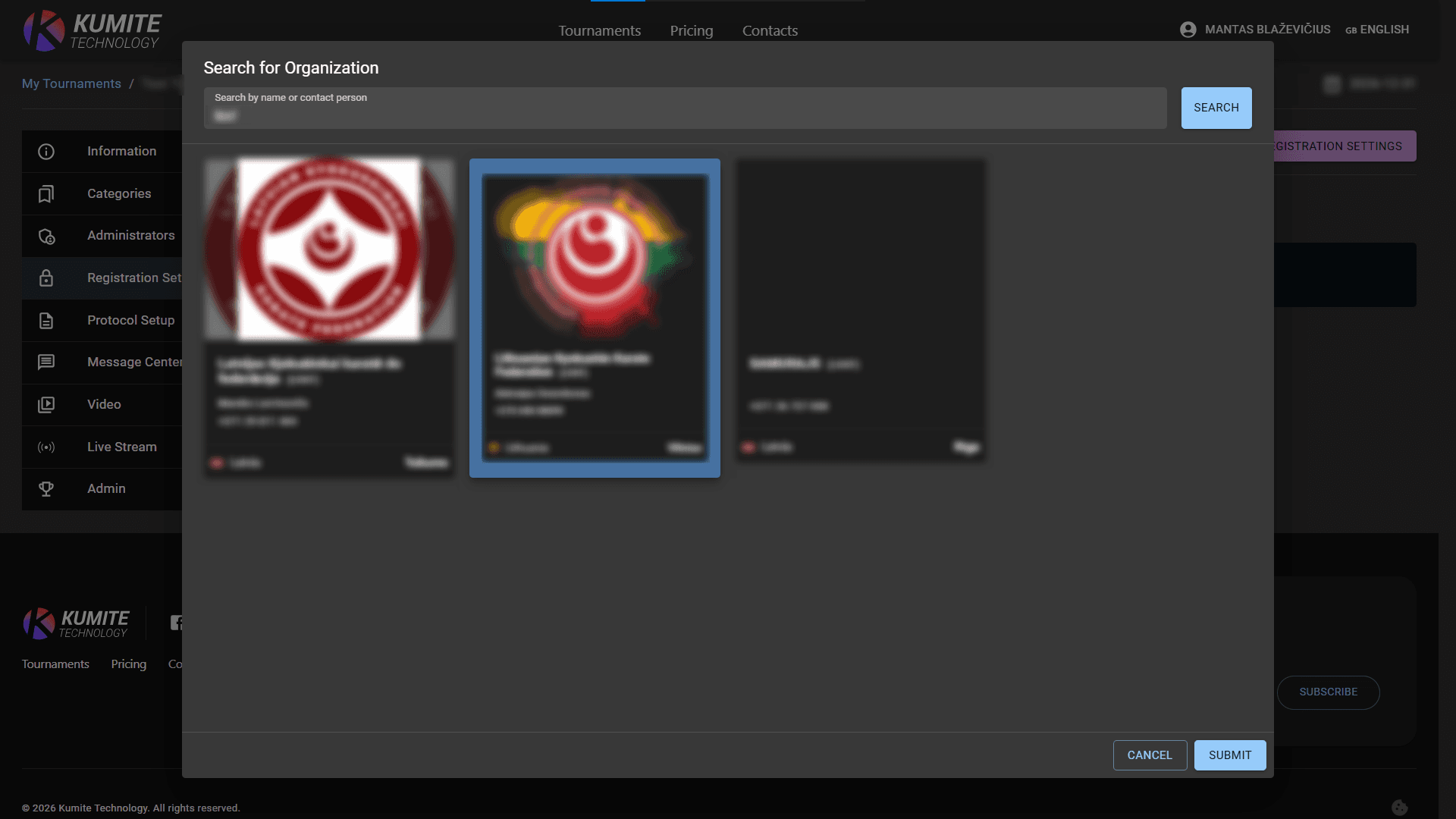
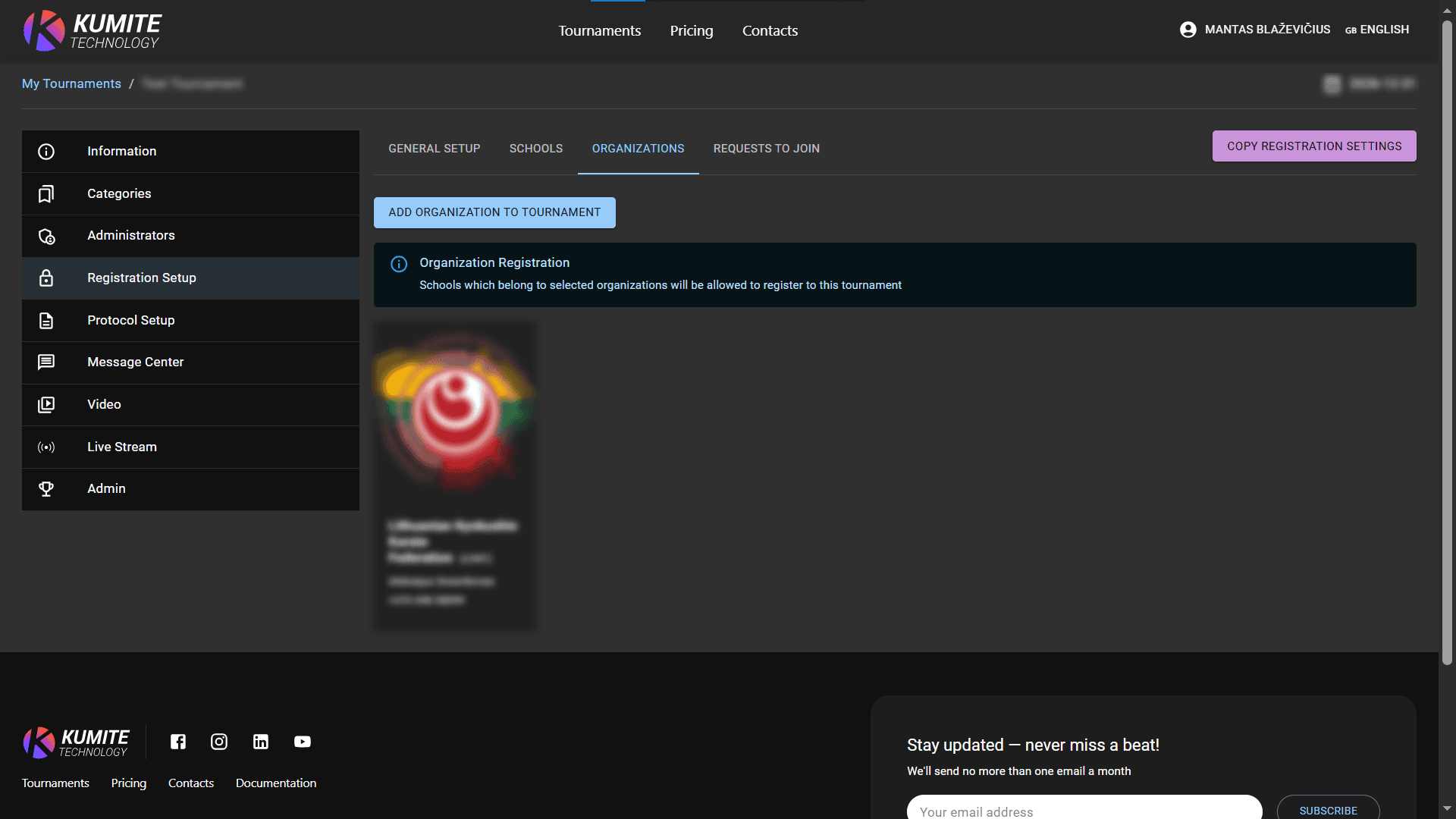
-
Requests to join: Click
Requests to join, review and approve/reject requests from external schools if you enabled theAllow requeststoggle in General Setup.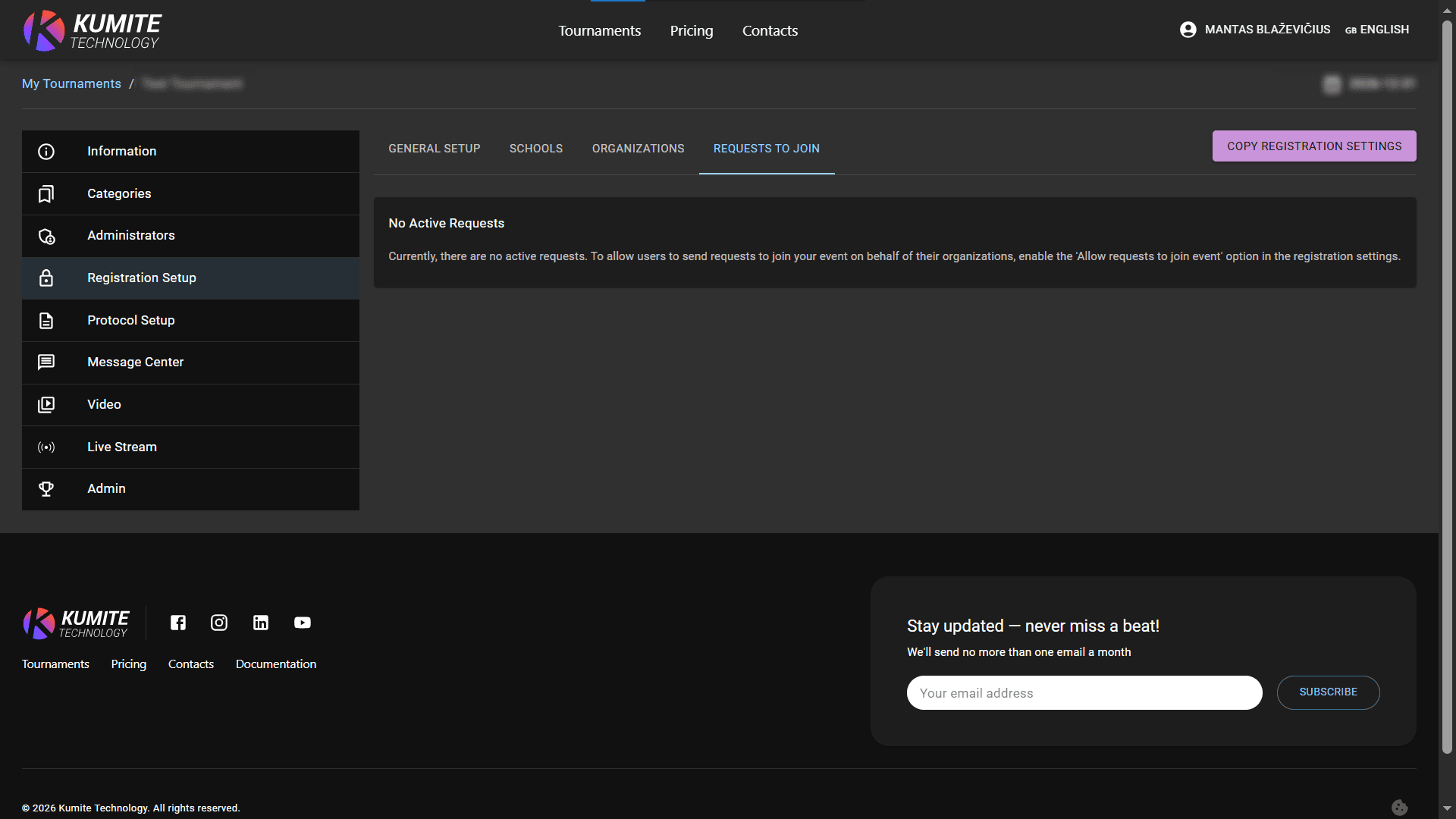
Click delete icon near school or organization if you want to remove them.