
Certificates
Follow these steps to print Certificates via KumiteTechnology.
Create Certificate Template
1. Go to Certificates
Open your tournament admin page and select Certificates, Create from the navigation menu.
2. Upload Template
Upload your certificate background (image or PDF).
3. Customize Fields
Add and position text blocks. If needed, add custom text block for dates, signatures, or tournament names. Use these tags to pull data automatically:
-
{{ firstName }}– Participant's first name. -
{{ lastName }}– Participant's last name. -
{{ place }}– Result (e.g., 1, 2). -
{{ category }}– Category name.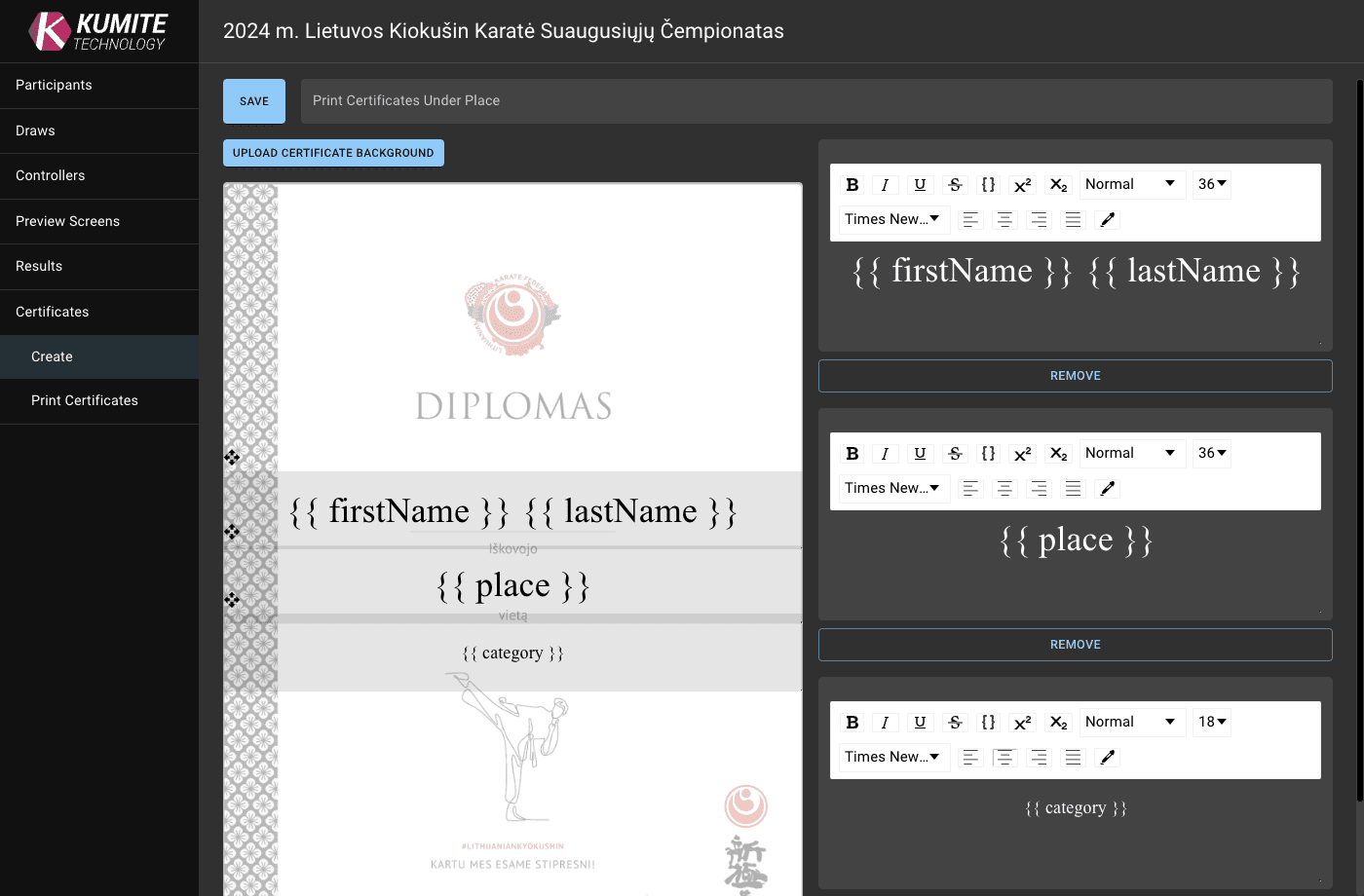
Printing Certificates
1. Go to Certificates
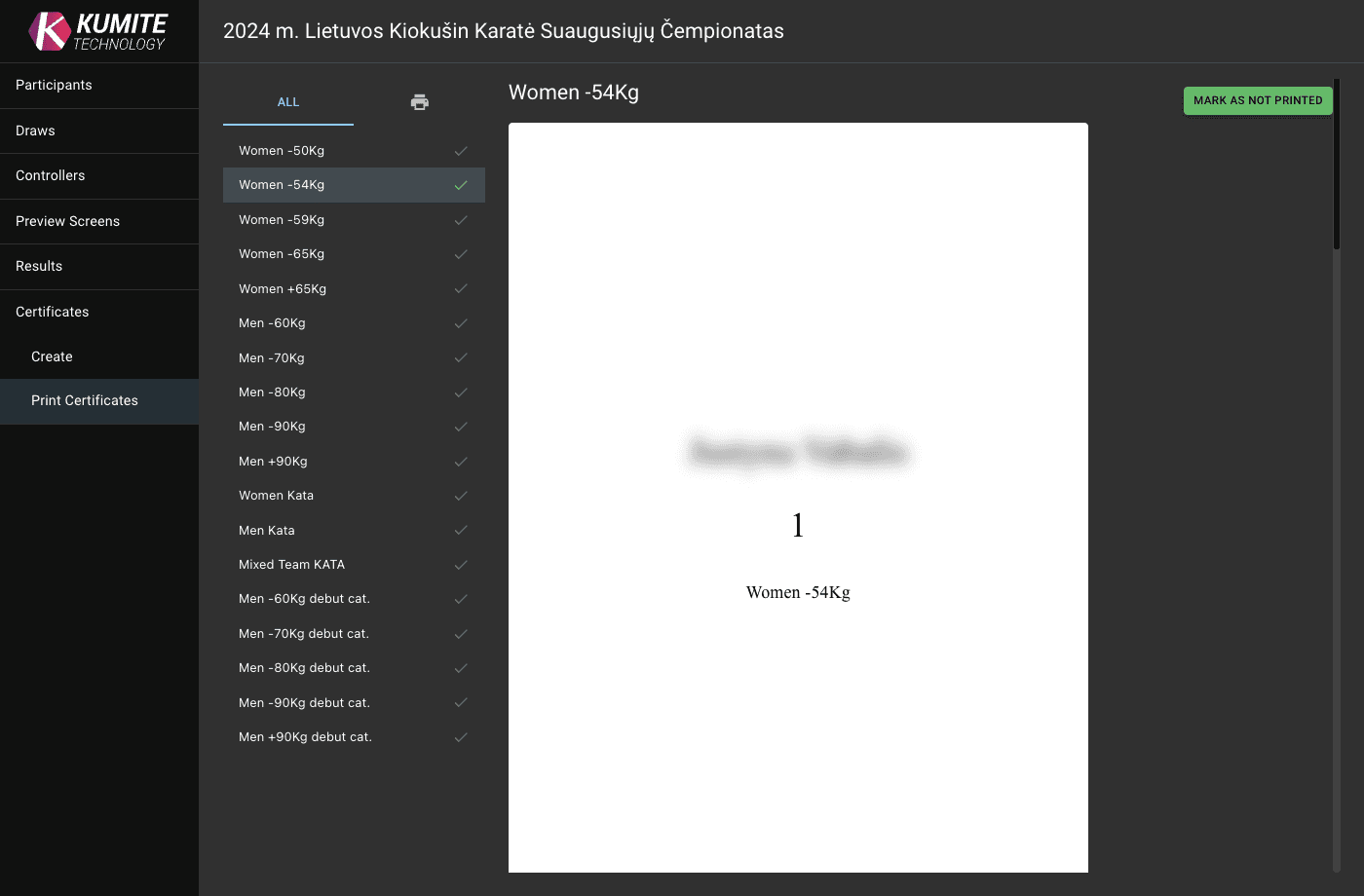
Open your tournament admin page and select Certificates, Print Certificates from the navigation menu.
2. Select the category
Click the category you want to print for. Use filter: Click the print icon and display only those categories that are ready for printing.
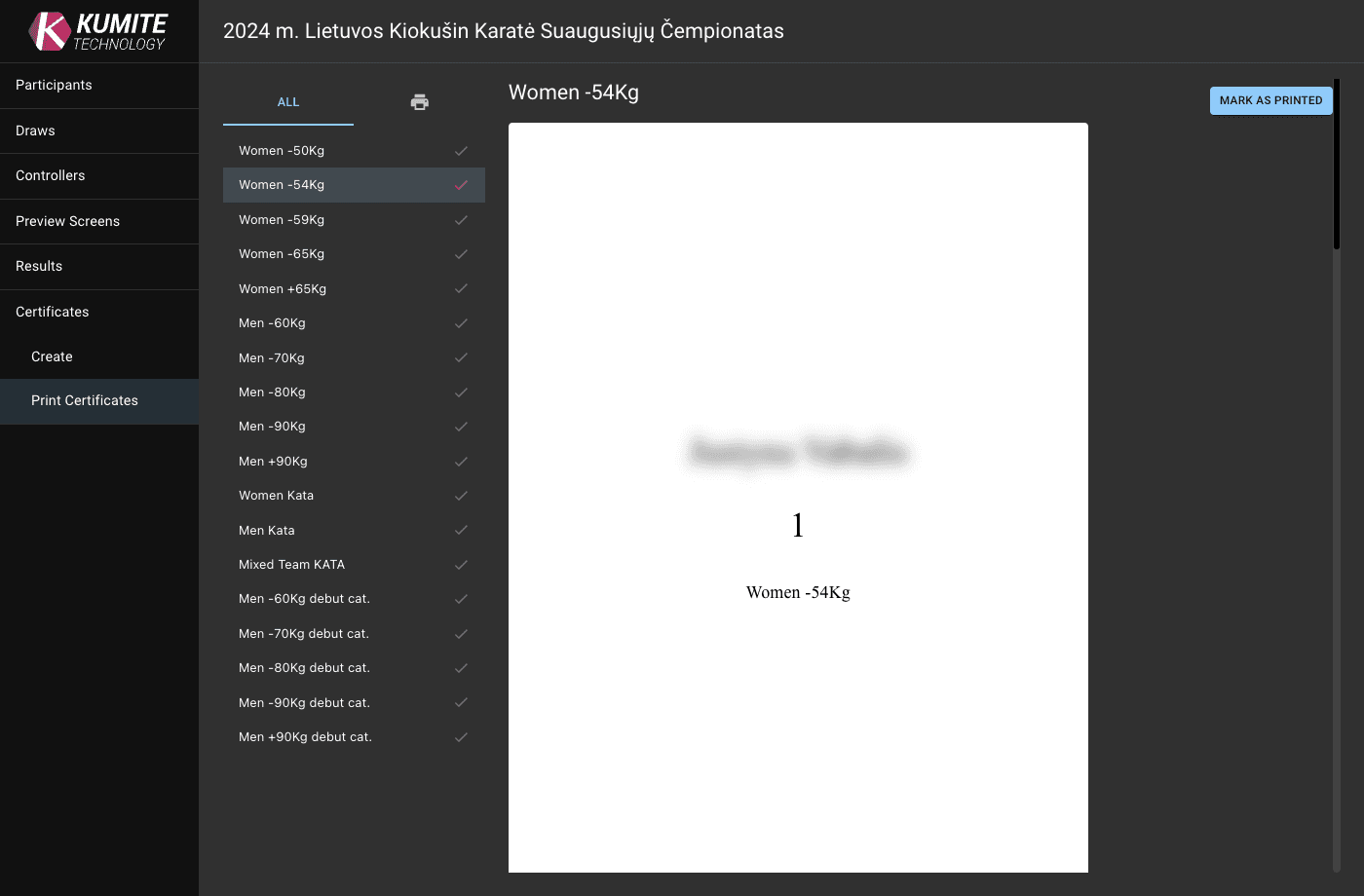
3. Print
Click CTRL and P to send it for printing.
4. Track Progress
Select the category you have already printed and click Mark as Printed. Printed certificates will be moved or flagged, allowing you to focus on the remaining ones.