

Automatic Announcements
Follow these steps to set up and manage Automatic Announcements in KumiteTechnology.
Requirements:
- Audio system: Loudspeakers connected to a PC.
- Connection: Stable internet and power supply.
- Browser: Announcement queue tab must remain open and active.
Set Up Environment
1. Connect your PC
Connect your PC to the venue's sound system.
2. Disable Sleep Mode
Disable Sleep Mode on your device to prevent the queue from stopping.
3. Turn on Silent Mode
Put the device in Silent Mode to avoid system notification sounds being broadcasted.
Set Up Announcements
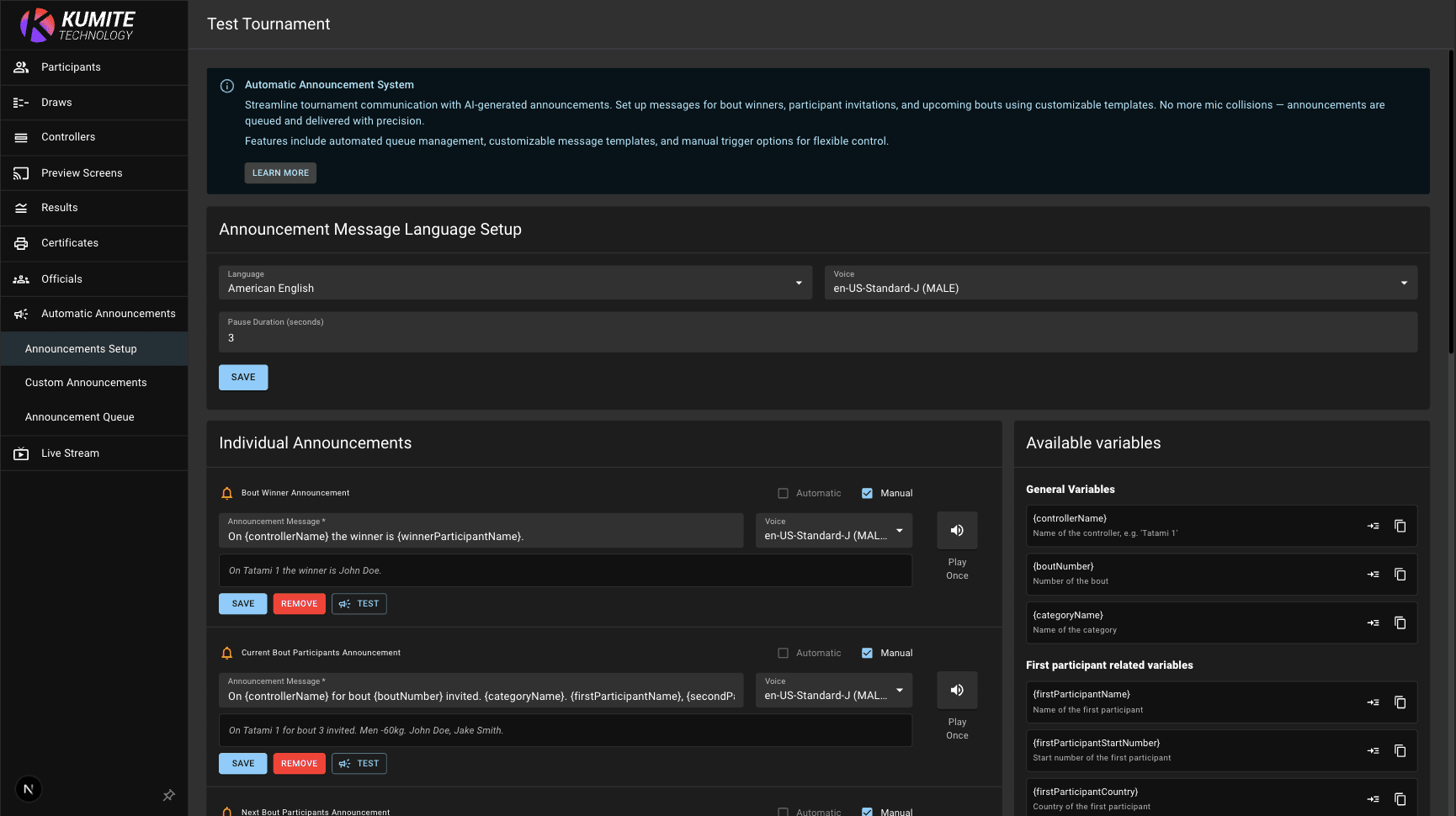
1. Go to Announcements Setup
Open your tournament admin page and select Automatic Announcements, Announcements Setup from the navigation menu.
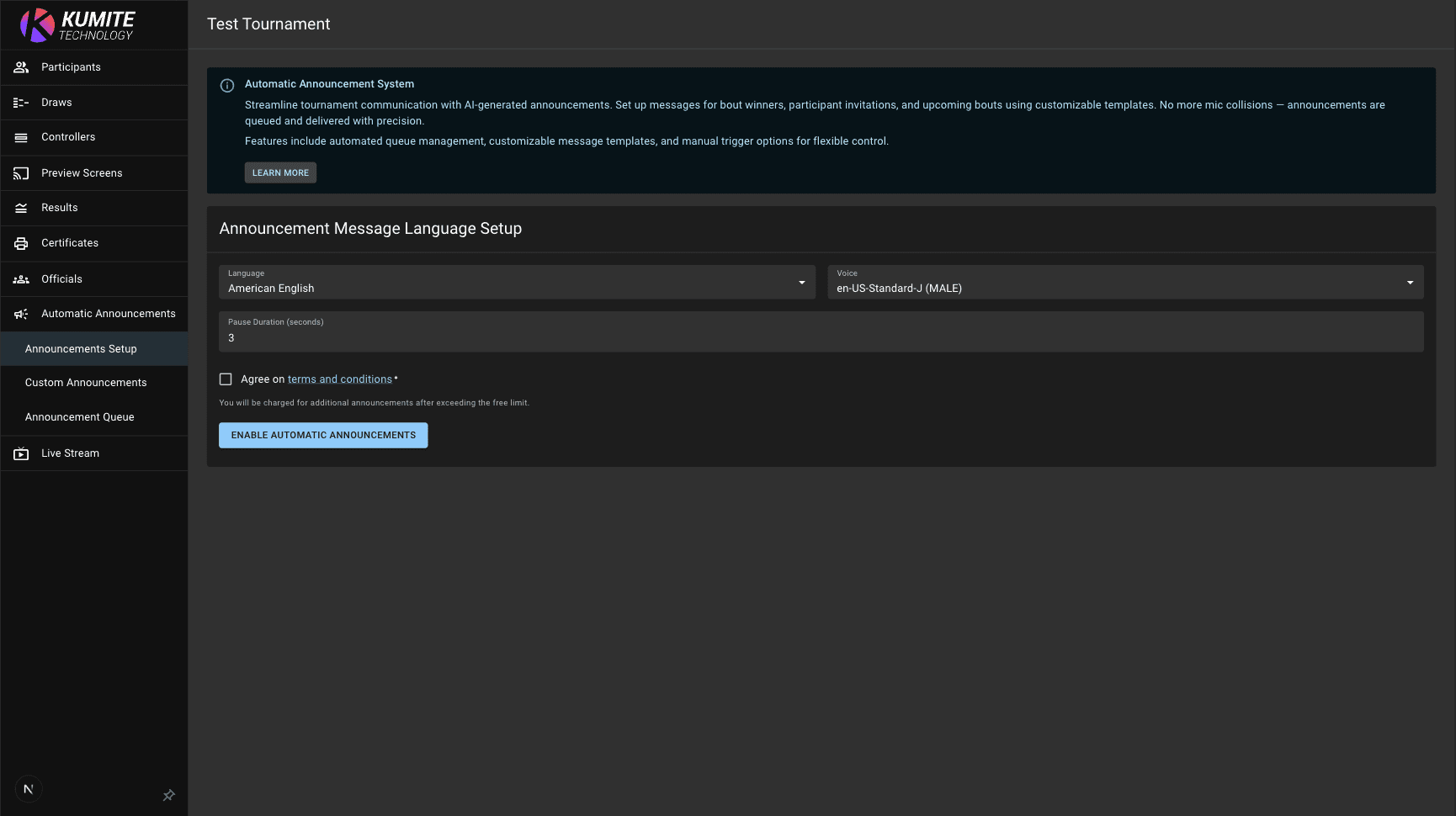
2. Choose Language
Choose the default language and AI voice for the announcements.
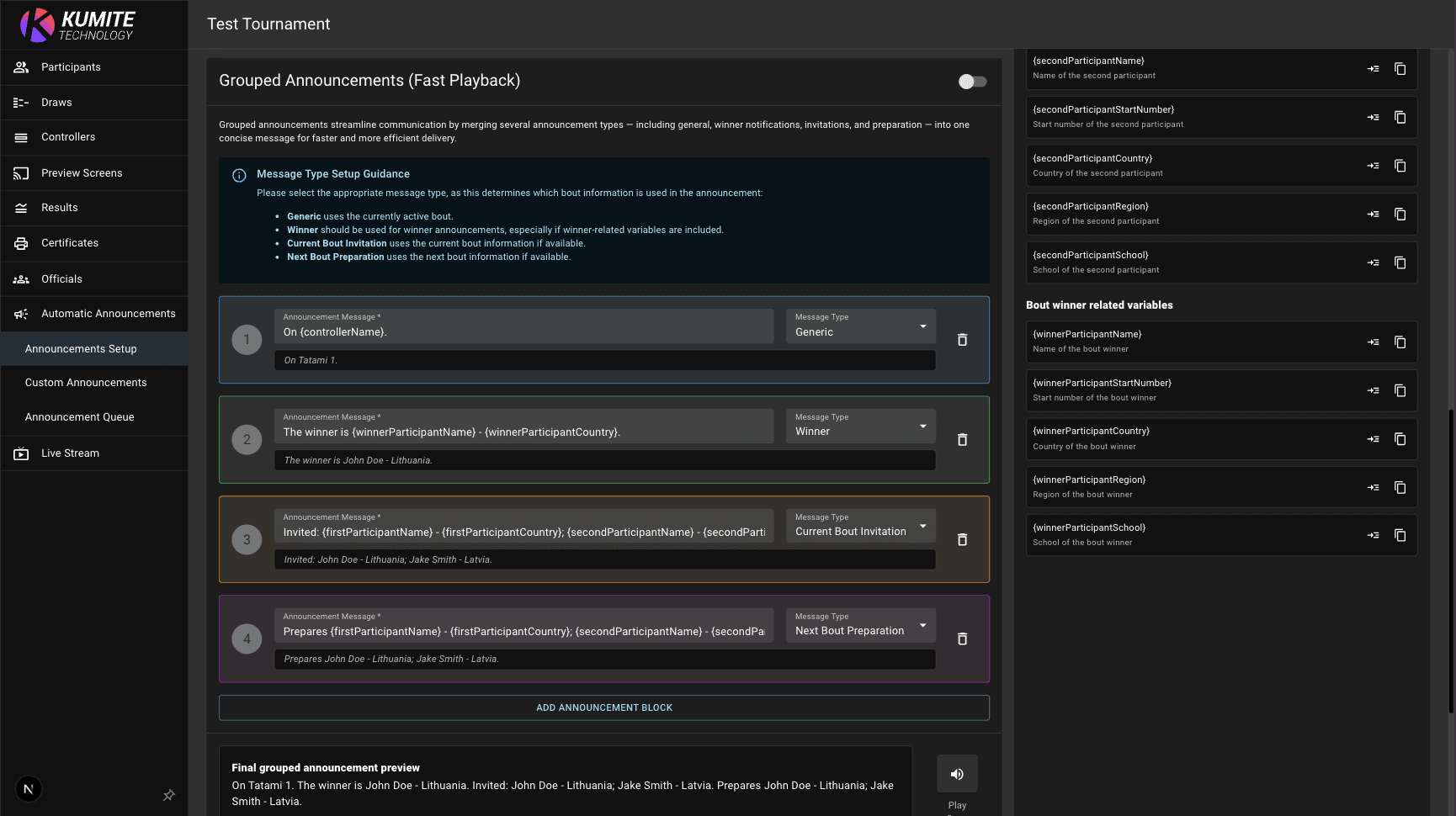
3. Set Up Template
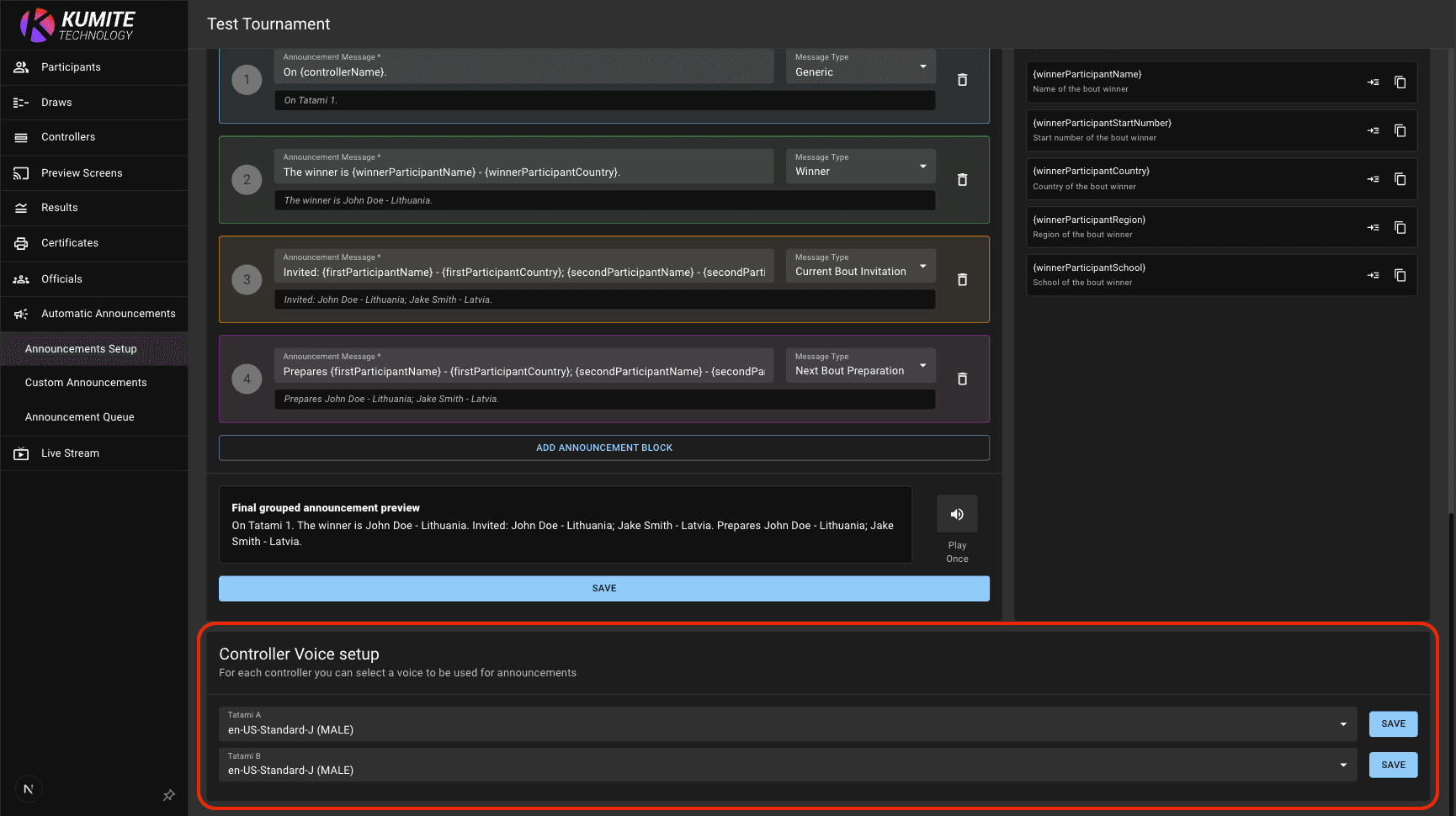
Customize your messages using variables (e.g., {winnerParticipantName}). Click Save. Use Grouped Announcements to merge multiple updates into one efficient broadcast.
4. Choose Mode
Decide how messages should be triggered for your specific event.
-
Automatic: Mark the
Automaticcheckbox to have the system queue and play messages immediately after each bout. -
Manual: Mark the
Manualcheckbox if you prefer to trigger only specific announcements.
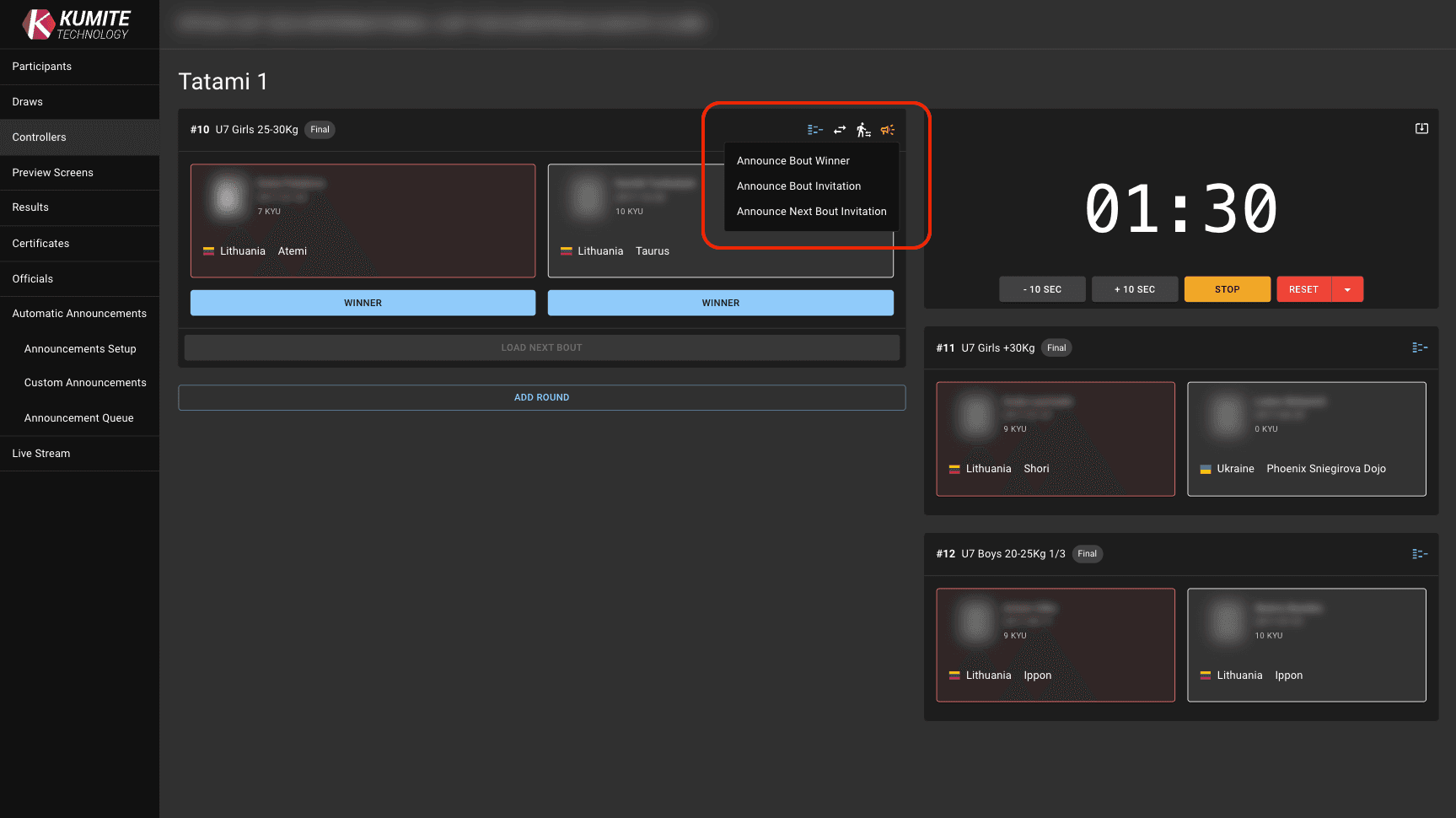
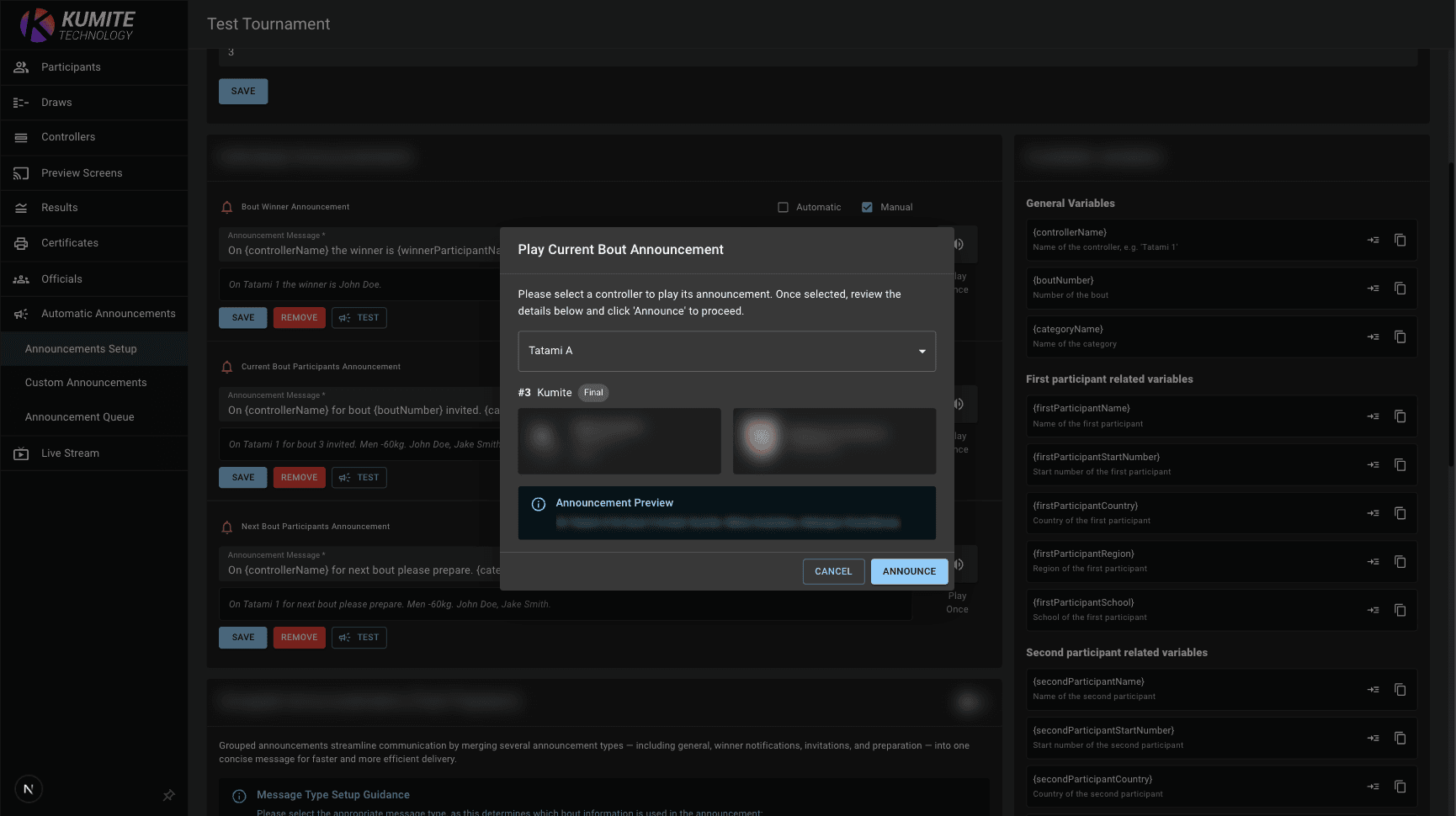
Manage the Queue
1. Go to Queue
Open your tournament admin page and select Automatic Announcements, Announcements Queue from the navigation menu.
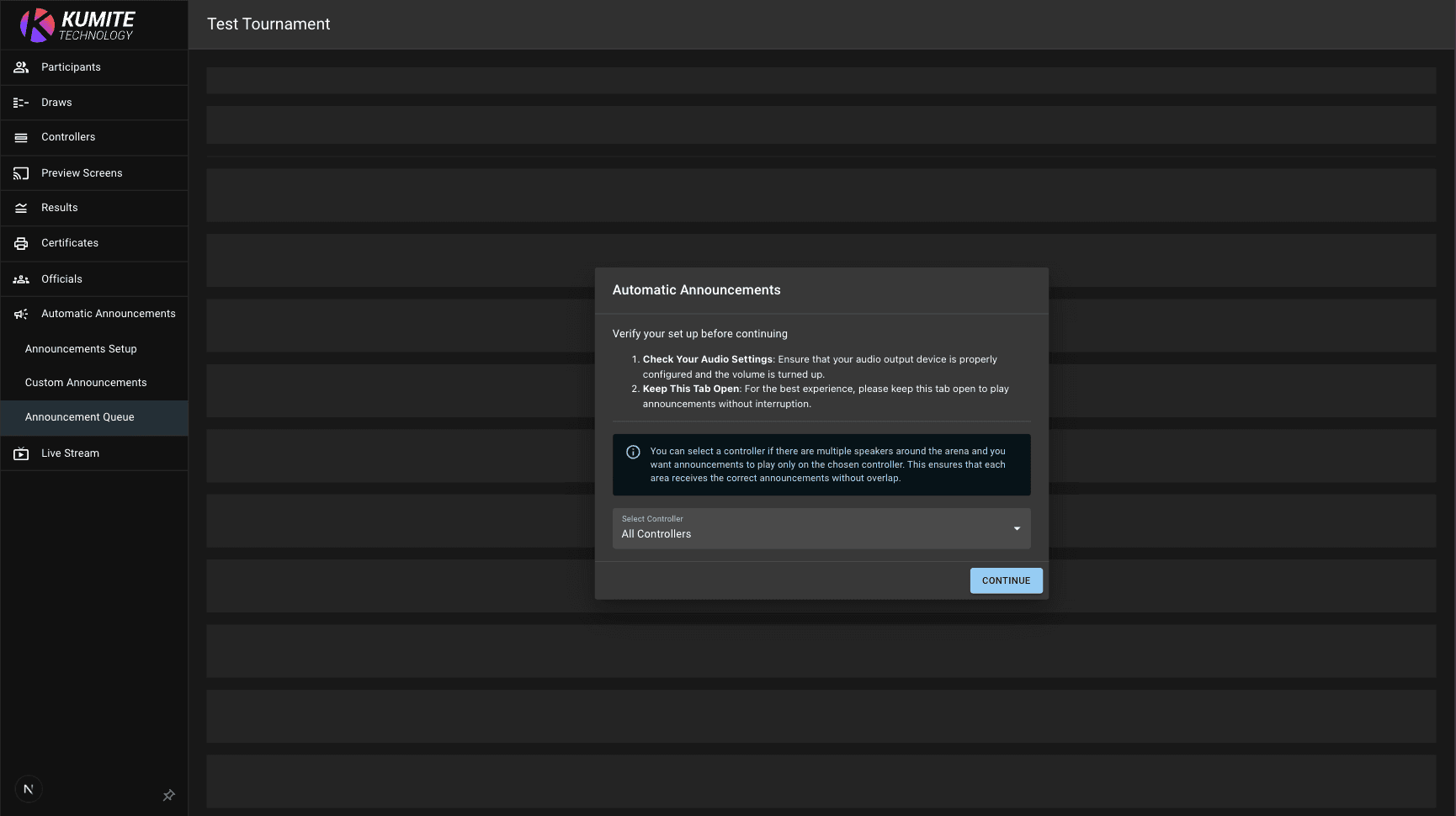
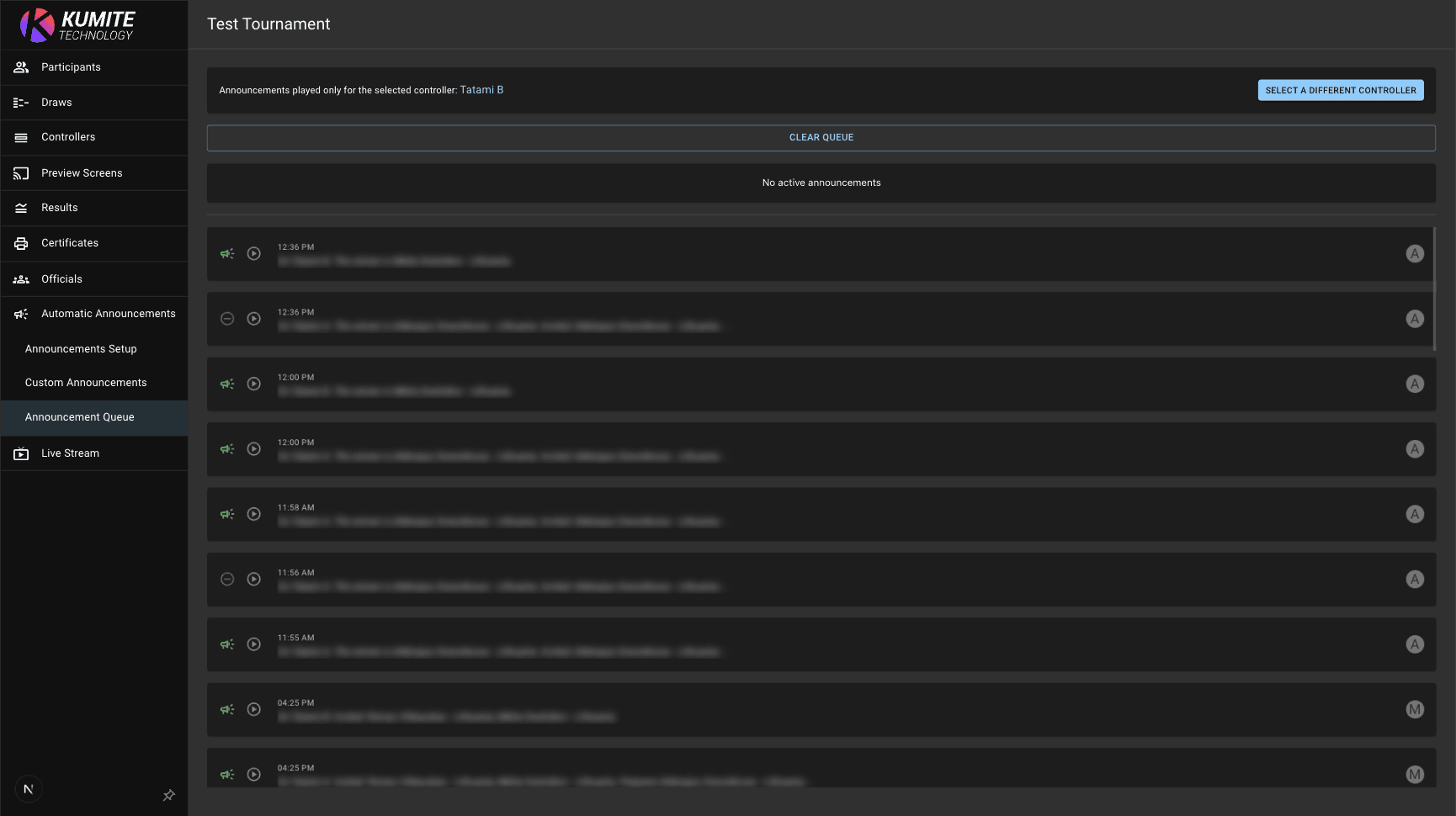
2. Cancel or Replay
View all upcoming announcements waiting to be played. Manually cancel individual items or clear the entire queue. Click the Play icon button next to a previously delivered announcement to repeat it.
Use Custom Announcements
1. Go to Custom Announcements
Open your tournament admin page and select Automatic Announcements, Custom Announcements from the navigation menu.
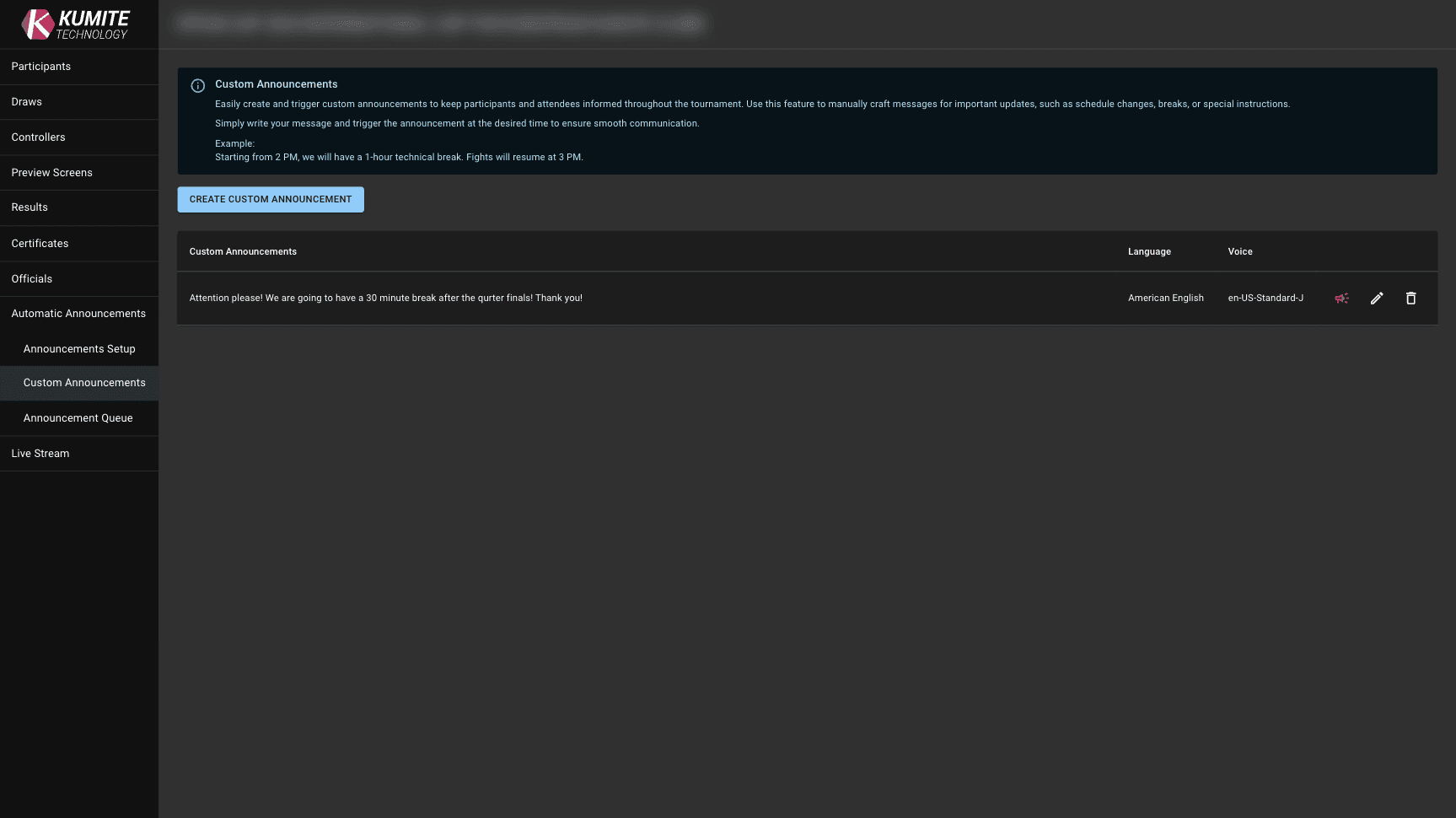
2. Create Message
Click Create Custom Announcement. Type your message, select a voice, and click Save.
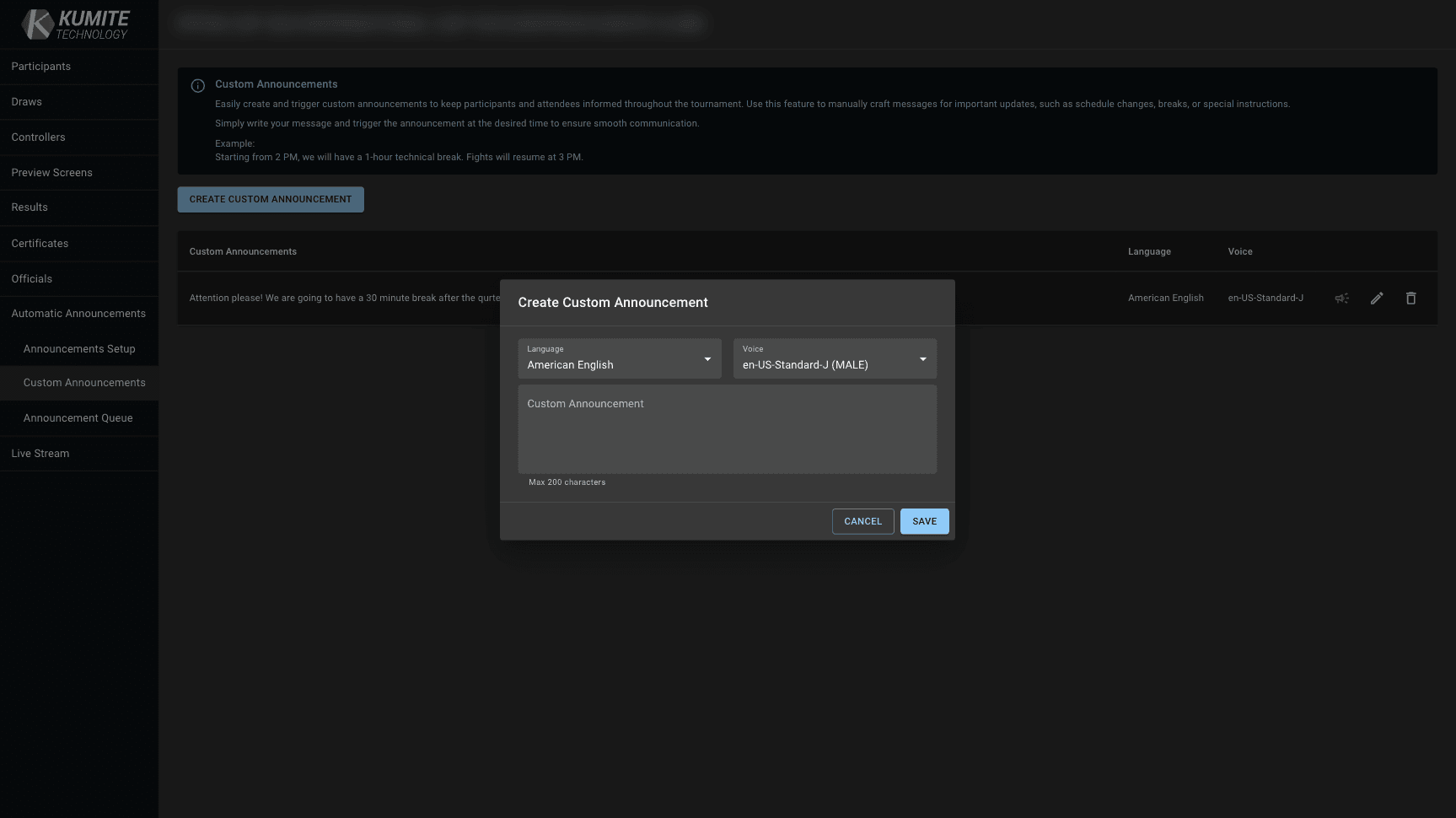
3. Trigger
Click the yellow speaker icon to trigger the playback.